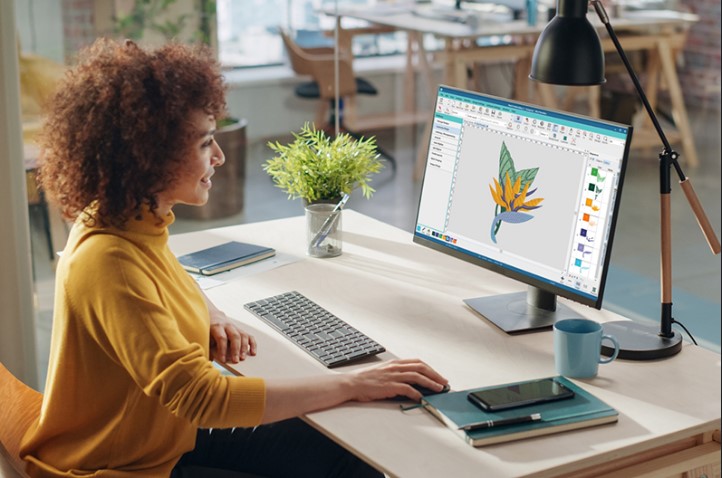
If you want clean, professional embroidery results, learning how to Convert Artwork to PES File quickly and accurately is a skill every modern digitizer must master. Whether you’re running a small embroidery business, customizing gifts, or preparing logos for Brother machines, proper PES conversion is the foundation of flawless stitching. The good news? With the right workflow and best practices, you can turn almost any artwork into a stitch-ready PES file in minutes without frustration or wasted fabric.
In this complete guide, we’ll break down everything you need to know about converting artwork to PES format, avoiding beginner mistakes, improving stitch quality, and speeding up your digitizing process.
A PES file is a machine embroidery format used primarily by Brother and Babylock embroidery machines. Unlike regular image files like JPG or PNG, a PES file doesn’t just show what the design looks like it tells your machine:
This makes PES files essential for actually producing embroidery. Without converting your artwork to PES, your machine simply can’t stitch your design.
Almost any type of digital artwork can be converted into a PES file, including:
However, not all artwork converts equally. Clean, high-resolution, and simple designs always produce the best embroidery results.
Many people think converting artwork to PES is just a technical step—but it directly affects:
Bad conversion leads to common embroidery problems like puckering, thread breaks, gaps in stitching, or messy edges. Good conversion delivers smooth, balanced, and professional embroidery that lasts through repeated washing and wear.
Auto tools are fine for experimentation, but serious embroidery relies on professional-level digitizing.
Not all file formats behave the same when converting to PES. Here’s how they rank:
These files contain clean paths that translate beautifully into stitches.
These can work but often need cleanup due to pixelation.
The cleaner the file, the better your PES conversion will be.
Let’s walk through the cleanest and fastest workflow used by experienced digitizers.
Before conversion, your artwork should be:
Avoid gradients, tiny textures, and extremely thin lines for best results.
Always size your artwork before converting it into PES. Resizing after digitizing can distort:
Set accurate width and height based on your hoop size and embroidery placement.
Different parts of your design need different stitches:
Using the wrong stitch type is one of the biggest beginner errors.
Underlay stitches stabilize the fabric and lift the top stitches for better coverage. A strong underlay:
Skipping underlay may save seconds but it costs quality.
Density controls how tight your embroidery looks.
Always test your density based on:
Digital colors rarely match physical thread exactly. Always:
This avoids unpleasant color surprises during production.
Pull compensation accounts for fabric movement during stitching. Without it, designs can shrink, distort, or lose sharp corners.
This is especially important for:
Once everything is optimized:
Your design is now PES-ready.
Always test your PES file on scrap fabric before stitching on real garments. Look for:
Testing saves time, fabric, and money.
Even experienced digitizers make mistakes. Here are the most common ones you should avoid:
Fixing these mistakes instantly boosts your embroidery quality.
Different fabrics behave differently under stitching:
Your PES file should always be adjusted based on fabric type.
With experience:
Auto tools may produce a PES file in seconds but fixing the mistakes usually takes longer than doing it right the first time.
Serious embroidery always benefits from expert digitizing.
Proper conversion:
Bad PES files cost more than just money, they cost reputation.
If you want to convert artwork faster without losing quality:
Speed comes from consistency not cutting corners.
If you use Brother or Babylock machines, PES is essential. But if you work with multiple machine brands, you may also need:
Many professional digitizers create multiple formats from one master file.
This skill is perfect for:
Being able to prepare your own PES files gives you full control over quality, turnaround time, and production costs.
With AI tools becoming more advanced, PES conversion is getting faster but manual digitizing still delivers the best quality. The future belongs to those who combine automation with human quality control.
Learning how to Convert Artwork to PES File quickly and accurately is one of the most valuable skills in modern embroidery. From choosing the right artwork and stitch types to adjusting density, underlay, and pull compensation, every step directly impacts your final result. Whether you’re a beginner or an experienced digitizer, following the best practices outlined in this guide will help you produce cleaner stitches, fewer errors, and more professional embroidery every time. And when you want reliable, high-quality PES conversion without the learning curve, countless embroiderers trust Digitizing Buddy to deliver precision, speed, and stitch-perfect results.

This post has been authored and published by one of our premium contributors, who are experts in their fields. They bring high-quality, well-researched content that adds significant value to our platform.